


Meta Title: XPath Cheat Sheet: A Practical Guide for Web Scraping Meta Description: Master web data extraction with our comprehensive XPath cheat sheet. Learn syntax, axes, and functions with practical examples for developers.
Getting the right data from a messy webpage can feel like a guessing game. This XPath cheat sheet is your playbook for navigating complex HTML and extracting the exact data you need, every time. It's built for developers who need to move past flimsy selectors and build reliable web scrapers.
Table of Contents
- What Is XPath and Why Is It Essential?
- Understanding Core XPath Syntax
- Filtering Nodes with XPath Predicates
- Navigating the DOM with XPath Axes
- Using XPath Functions and Operators
- Common XPath Recipes for Web Scraping
- How to Debug and Optimize XPath Expressions
- Frequently Asked Questions
- Next Steps
Caption: XPath allows for multi-directional navigation through the HTML DOM, a key advantage over other selectors. Source: CrawlKit Blog
What Is XPath and Why Is It Essential?
XPath, short for XML Path Language, is a query language for selecting nodes in an XML or HTML document. Think of it as GPS for a webpage. It gives you a syntax to define a precise path from the top of the document down to any element, attribute, or piece of text you want.
While CSS selectors are often sufficient, XPath's real power is its flexibility. It excels when you're facing poorly structured HTML where elements lack clear IDs or class names to target.
The killer feature? XPath can navigate the document tree in any direction—up to a parent, down to a child, or sideways to a sibling. Simpler selectors just can't do that, making XPath indispensable for building scrapers that don't break when a website's layout changes.
Key Advantages of Using XPath
For anyone extracting data, the benefits are immediate and practical:
- Precise Targeting: Pinpoint elements based on complex logic, like their text content or their position relative to another element.
- DOM Traversal: Unlike CSS selectors, XPath can walk up the DOM tree. This lets you find a parent element based on a characteristic of one of its children—an incredibly useful pattern.
- Handling Dynamic Pages: Grab elements on dynamic sites where the structure might shift, but the relationships between elements stay the same.
Simplifying Scraping with an API
While a perfect XPath expression is a powerful tool, it's only half the battle. Managing the infrastructure—proxies, headless browsers, and the constant cat-and-mouse game of anti-bot systems—is a separate headache. That's where a developer-first platform like CrawlKit comes in.
CrawlKit is an API-first web data platform designed to turn any website into structured JSON. You bring the URL and your XPath selector, and the API handles everything else. There’s no scraping infrastructure for you to build or maintain because proxies and anti-bot systems are completely abstracted away. This approach lets you focus on crafting the right XPath, not on whether your proxies are getting blocked. You can start for free to explore the API.
Understanding Core XPath Syntax
Mastering the core syntax is the first step to becoming proficient with XPath. This is the basic grammar for navigating an HTML document. Think of this XPath cheat sheet as learning the alphabet before you start writing words—every complex query you build will rely on these fundamental patterns.
At its heart, XPath uses a path-like structure to navigate the document tree, with each step in the path bringing you closer to the element you're after.
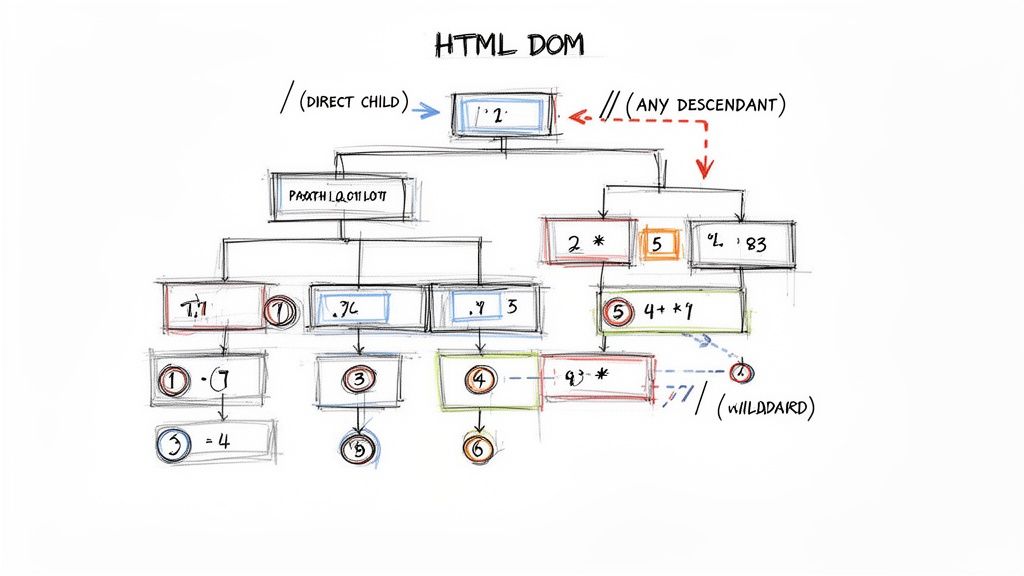 Caption: XPath syntax provides a clear, path-based way to select elements within the HTML structure. Source: Outrank
The Most Common Selectors
The two path selectors you'll use constantly are the single slash (/) and the double slash (//). Getting the difference between these two is critical for writing expressions that are both efficient and reliable.
tagname: Selects all elements with a specific tag name. For example,pselects every paragraph element./(Direct Child): Selects an element that is a direct child of the current node. The path/html/body/divonly findsdivelements that are immediate children ofbody.//(Any Descendant): The powerhouse selector. It finds nodes anywhere in the document, no matter how deep. An expression like//divreturns everydivon the page.
Relative and Wildcard Selectors
Beyond absolute paths, a few other symbols are essential for navigating flexibly. These let you refer to the current node, move up the tree, or match any element type.
.(Current Node): Represents the node you're currently at. It’s most often used to start a relative path, like./ato find anchor tags that are direct children of the current element...(Parent Node): One of XPath's most powerful features, allowing you to travel up the DOM tree to the parent of the current node.*(Wildcard): The "match anything" operator. It matches any element node. For instance,//div/*selects every direct child of anydivelement.
Core XPath Syntax Quick Reference
This table breaks down the most fundamental XPath selectors. Keep it handy for quick lookups when you're building expressions.
| Selector | Description | Example |
|---|---|---|
nodename | Selects all nodes with the given name. | h2 |
/ | Selects from the root node (direct child). | /html/body/div |
// | Selects nodes from anywhere in the document. | //p |
. | Selects the current node. | ./a |
.. | Selects the parent of the current node. | //div/../span |
* | Matches any element node (wildcard). | //div/* |
@ | Selects attributes of the current node. | //a/@href |
Filtering Nodes with XPath Predicates
If basic syntax is how you navigate, predicates are how you pinpoint your exact destination. This is where the real power for precise selection comes from. As a core part of any XPath cheat sheet, predicates are the bracketed [] expressions that act as filters, letting you select nodes based on specific conditions.
Predicates elevate your expressions from broad strokes like //a (give me all links) to surgical strikes, like grabbing the third link in a specific list or a button with a certain ID.
 Caption: Predicates allow you to apply complex filtering logic directly within your XPath expressions. Source: Outrank
Filtering by Position and Attributes
Two of the most common ways to filter are by an element's position among its siblings (its index) or by its attributes, like id and class.
- By Index: A crucial thing to remember is that XPath uses 1-based indexing. The first element is
[1], the second is[2]. To select the second list item, you'd use//ul/li[2]. - By Attribute: Target elements based on their attributes using the
[@attribute='value']syntax. For example,//div[@id='product-details']is a rock-solid way to select adivwith a specific ID.
Research shows predicates appear in a staggering 82% of XPath expressions used in web automation. Attribute selectors for id (68%) and class (55%) are by far the most common. You can find more detailed XPath usage patterns and findings from this study.
Advanced Filtering with Multiple Conditions
Things get interesting when you combine conditions. You can make your selectors even more specific by chaining predicates or using logical operators inside a single set of brackets.
- Chaining Predicates: Add another bracketed condition. For instance,
//ul[@id='results']/li[3]/a[@target='_blank']narrows down the selection step-by-step. - Logical Operators (
and,or): Combine conditions inside a single predicate. To find aninputelement that is not disabled and has the type 'submit', you could use//input[@type='submit' and not(@disabled)].
With a tool like CrawlKit, you can use these precise predicates to get clean data without the overhead of managing infrastructure. The API-first platform handles the browsers and proxies, letting you focus on writing the perfect query.
Here’s a quick cURL example showing how to extract a product title using a more complex predicate with CrawlKit:
1curl "https://api.crawlkit.sh/v1/extract?url=https://example.com/products/123" \
2  -H "Authorization: Bearer YOUR_API_KEY" \
3  -d '{
4    "selectors": {
5      "product_title": "//div[@id=\"product-info\"]/h1[contains(text(), \"Widget\")]"
6    }
7  }'
This request tells CrawlKit to target the h1 tag inside a specific div, but only if its text contains the word "Widget," returning clean, structured JSON.
Navigating the DOM with XPath Axes
To level up your scraping game, you have to master XPath Axes. While basic selectors get you part of the way, axes give you the power to move in any direction from your current spot in the DOM—up to a parent, sideways to a sibling, or down to any descendant. This is what truly separates XPath from CSS selectors.
Think of axes as defining the relationship between the node you've found and the node you actually want. Instead of only grabbing a child element, you can find its parent, jump to the following-sibling, or even find any ancestor. This is a lifesaver when scraping poorly structured pages.
Understanding Key Axes
There are 13 axes in the XPath 1.0 spec, but you'll solve 95% of your problems with just a handful of them. Getting these core axes down is critical. For a deeper dive, you can read more about the most used XPath axes.
Here are the essentials:
parent::: Selects the immediate parent of the current node (shorthand is..).ancestor::: Selects all ancestors of the current node, up to the HTML root.following-sibling::: Selects all sibling nodes that appear after the current node.preceding-sibling::: Selects all sibling nodes that appear before the current node.descendant::: Selects all children, grandchildren, etc., of the current node (shorthand from the root is//).
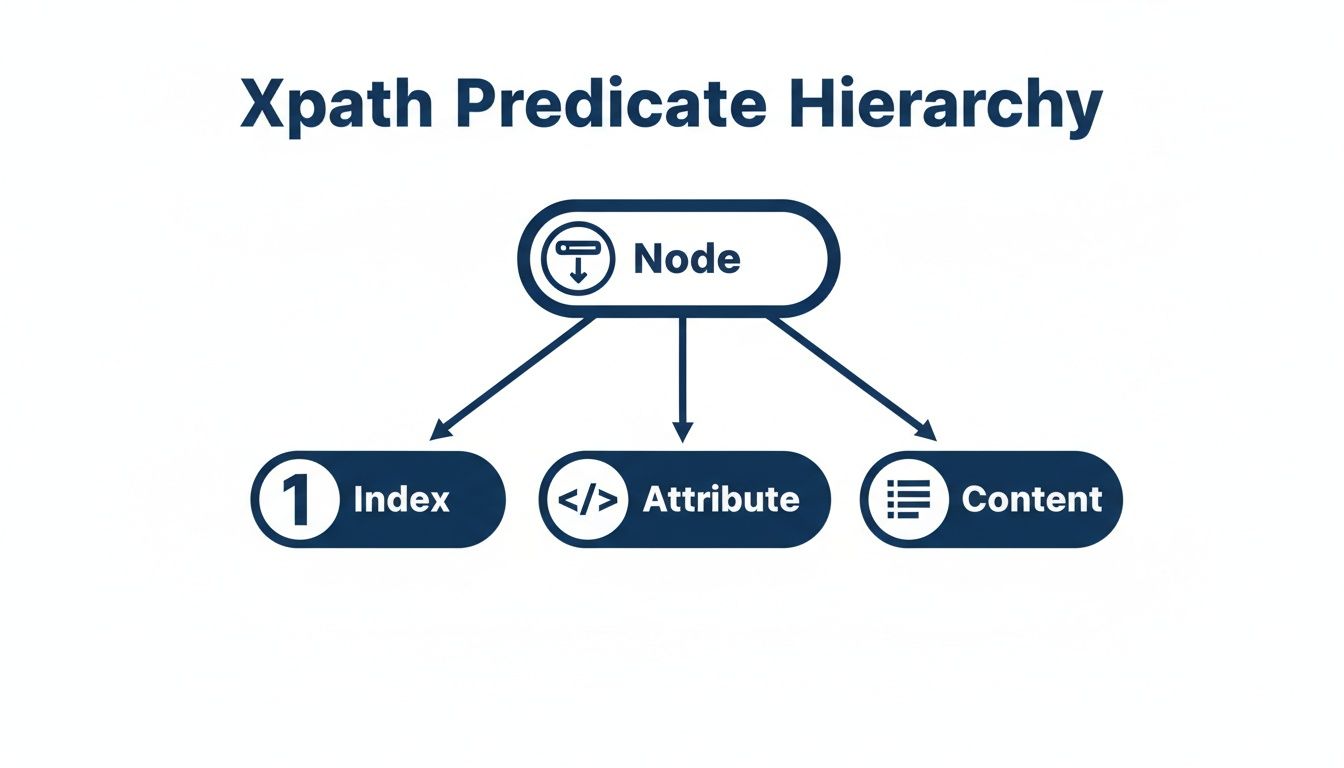 Caption: Axes get you into the right neighborhood, and predicates let you pick the exact house. Source: Outrank
Essential XPath Axes Comparison
This table gives you a comparative look at the most powerful XPath axes, their syntax, and ideal scenarios for using them.
| Axis | Syntax Example | Description | Common Use Case |
|---|---|---|---|
following-sibling | h2/following-sibling::p[1] | Selects all siblings that come after the current node at the same level. | Grabbing the paragraph that immediately follows a specific heading. |
preceding-sibling | div[@class='price']/preceding-sibling::h3 | Selects all siblings that come before the current node at the same level. | Finding the product title heading that appears right before the price element. |
parent | span[@class='icon']/parent::a | Selects the direct parent of the current node. Often used as .. | Getting the full link (<a> tag) when you can only reliably select an icon (<span>) inside it. |
ancestor | td/ancestor::tr | Selects all ancestors (parent, grandparent, etc.) of the current node. | Finding the table row (<tr>) that contains a specific cell (<td>) you've located. |
descendant | div[@id='product-info']/descendant::span | Selects all descendants (children, grandchildren, etc.) of the current node. | Finding every <span> tag no matter how deeply nested it is inside a product info <div>. |
Practical Example with Axes
Let's say you're scraping a product page. The price is in a generic <span> with no useful class, but the product title next to it is easy to target. This is a classic scenario where axes shine.
1# Python code snippet using lxml to find a price relative to a title
2from lxml import html
3import requests
4
5# Example HTML structure:
6# <div>
7#   <span class="title">Awesome Widget</span>
8#   <span class="price">$19.99</span>
9# </div>
10
11page = requests.get('http://example.com/product/123')
12tree = html.fromstring(page.content)
13
14# Find the span with the title, then navigate to the next span sibling
15price = tree.xpath("//span[text()='Awesome Widget']/following-sibling::span[1]/text()")
16print(price)  # Output: ['$19.99']
This expression first finds the <span> with the product's title. Then, /following-sibling::span[1] moves from that title element to the very next sibling that is also a <span>.
Using XPath Functions and Operators
While axes get you to the right neighborhood, XPath functions and operators let you knock on the right door. This is where you move beyond simple navigation and start manipulating text, counting elements, and applying real logic. Mastering these makes your expressions incredibly precise.
Functions are your workhorses. They let you perform operations directly inside an XPath expression, which means you can often pull clean, ready-to-use data without needing extra code to process it later.
 Caption: XPath functions provide powerful ways to filter and manipulate data directly within your selectors. Source: Outrank
Essential String Functions
String functions are vital when you're dealing with messy or dynamic HTML. When an exact text match is too rigid, these are the tools you'll reach for.
contains(string, substring): Checks if an attribute or text node has a specific piece of text anywhere within it.- Example:
//a[contains(@href, 'product-details')]grabs any link whosehrefcontains 'product-details'.
- Example:
starts-with(string, substring): Matches elements where an attribute or text starts with a particular string.- Example:
//div[starts-with(@id, 'user-')]finds alldivelements with an ID likeuser-123.
- Example:
normalize-space(): A lifesaver. It strips leading/trailing whitespace and collapses internal spaces to a single space, letting you match against sloppy HTML.- Example:
//p[normalize-space()='Hello World']will successfully match<p> Hello World </p>. Find more practical examples in our guide to using contains in XPath.
- Example:
Useful Node and Number Functions
Beyond text, you often need to target elements based on their position or count what you've found.
text(): Selects the text content of the current node and all its descendants.- Example:
//div[@class='item']/text()extracts only the text nodes that are direct children of the itemdiv.
- Example:
last(): Returns the index of the last element among its siblings.- Example:
//ul/li[last()]always pins down the very last list item.
- Example:
count(): Counts the number of nodes in a given node-set, typically used inside a predicate.- Example:
//div[count(p) > 2]selectsdivelements that contain more than two paragraphs.
- Example:
Logical and Comparison Operators
Operators are the glue that holds complex expressions together.
- Comparison Operators: Standard operators for comparing values:
=,!=,>,<,>=, and<=.- Example:
//div[@data-price > 50]selects divs where thedata-priceattribute is greater than 50.
- Example:
- Logical Operators: The
andandoroperators allow you to chain conditions inside a single predicate. Thenot()function inverts a condition.- Example:
//button[@class='primary' and not(@disabled)]finds a primary button that is not disabled.
- Example:
Modern tools like CrawlKit's API are built for this kind of efficiency, ensuring the data you get is structured and clean from the start.
Common XPath Recipes for Web Scraping
Knowing the syntax is one thing, but putting it to work is another. This section provides ready-to-use recipes for the most common scenarios you'll encounter. A ScraperAPI analysis found that using relative XPath expressions cuts down on selector breakage by 40% compared to brittle CSS selectors.
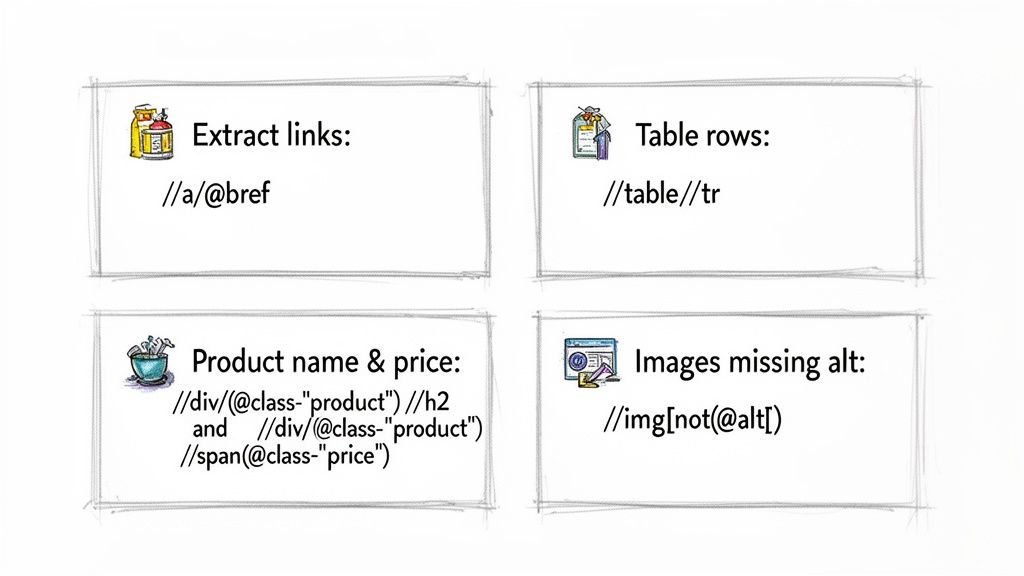 Caption: Practical XPath recipes can solve common scraping challenges with just a single line of code. Source: Outrank
Extracting All Links from a Page
A fundamental task is grabbing every single link on a page. This simple expression targets the href attribute of every <a> tag.
- XPath Expression:
//a/@href - How It Works:
//aselects all anchor (<a>) elements./@hrefthen pivots to grab the value of thehrefattribute.
Scraping Product Names and Prices
E-commerce sites are a classic target. This recipe grabs a product's name and price when they aren't neatly nested together.
- Target HTML:
html
1<div class="product"> 2 <h3>Super Widget</h3> 3 <span class="price">$29.99</span> 4</div> - XPath Expression for Price:
//h3[text()='Super Widget']/following-sibling::span[@class='price']/text() - How It Works: It finds the
<h3>with the product name, then usesfollowing-sibling::spanto look sideways for the<span>with the class 'price' and extracts its text. For more on this approach, see our guide on how to scrape LinkedIn data.
Finding Images Missing Alt Text
Running an accessibility audit? This XPath finds all images that are missing an alt attribute.
- XPath Expression:
//img[not(@alt)] - How It Works: It selects every
<img>element, and the predicate[not(@alt)]filters the list to only those that do not have analtattribute.
How to Debug and Optimize XPath Expressions
Even a perfect XPath can come back empty, making debugging a non-negotiable skill. No XPath cheat sheet is complete without troubleshooting tips. Modern browsers give you everything you need to test and fix your expressions on the fly.
Most of the time, a broken XPath is due to a simple typo or a misunderstanding of the page structure. The quickest way to find the problem is to use your browser's developer tools. In Chrome or Firefox, open the console (Ctrl+Shift+J or Cmd+Option+J) and use the $x() command to run an expression against the live DOM.
 Caption: Building and testing XPath expressions piece-by-piece in the browser console is a key debugging technique. Source: Outrank
Common Mistakes and Quick Fixes
When your XPath returns nothing, check for these common culprits first:
- Namespaces: In XML or XHTML, namespaces can trip up simple selectors, often requiring special functions to handle correctly.
- Dynamic Content: The element might be loaded by JavaScript after the initial page load. Your scraper needs to wait for the page to fully render.
- Incorrect Context: A relative path like
./divdepends entirely on the current node. If your starting point is wrong, the path will fail.
Pro Tip: Build your expressions piece by piece in the browser console. Start with something broad but reliable, like
//div[@id='main'], check that it works, then add the next part of the path and check again. This step-by-step method immediately shows you where things go wrong.
Optimizing for Performance
Performance becomes critical when you're scraping at scale. An inefficient XPath can seriously slow down your scrapers. The biggest performance killer is starting an expression with // or //*, which forces the XPath engine to scan the entire document. Whenever possible, start your path from a more specific anchor point closer to your target. You can dive deeper into this topic in our guide to web scraping best practices.
Here’s a quick performance checklist:
- Avoid starting with
//: Instead of//a, anchor it to a unique parent, like//div[@id='unique-container']//a. - Be Specific: Use a specific tag name like
divinstead of the wildcard*. - Limit
last()andposition(): Predicates based on position can be slower than those using a unique attribute.
Using Your XPath Skills with CrawlKit
Knowing how to write a killer XPath expression is half the battle. The other half is running it against a site without getting blocked or tripped up by CAPTCHAs. This is where a good XPath cheat sheet meets modern scraping infrastructure.
CrawlKit is a developer-first, API-first web data platform built for exactly this. It completely abstracts away the infrastructure headaches. You provide a URL and your XPath expressions, and the platform handles proxies, browser rendering, and anti-bot measures, returning clean, structured JSON.
From XPath to JSON in a Single API Call
The workflow becomes refreshingly simple. You figure out the perfect selectors in your browser, copy them, and drop them straight into an API call. There’s no scraping infrastructure to build, so you can focus on the data extraction logic itself. You can start free and begin turning websites into data right away.
Here’s a real-world cURL example showing how you’d scrape a product name and price:
1curl "https://api.crawlkit.sh/v1/extract?url=https://example.com/product/123" \
2  -H "Authorization: Bearer YOUR_API_KEY" \
3  -d '{
4    "selectors": {
5      "product_name": "//h1[@itemprop=\"name\"]",
6      "price": "//span[@itemprop=\"price\"]"
7    }
8  }'
The API takes it from there, returning a clean JSON object like {"product_name": "Awesome Widget", "price": "29.99"}. To see what else is possible, you can explore CrawlKit's data extraction capabilities.
Frequently Asked Questions about XPath
Here are answers to the most common questions about using XPath for web scraping.
1. What's the main difference between XPath and CSS selectors?
The biggest difference is direction. CSS selectors can only travel down the DOM tree (from parent to child). XPath can travel in any direction: up to a parent (parent::), down to a child (/), and sideways to a sibling (following-sibling::). This makes XPath far more powerful for locating elements based on their relationship to other elements on the page.
2. Is XPath slower than CSS selectors?
Generally, yes. Native browser implementations of CSS selector engines are highly optimized and tend to be faster than XPath engines for simple selections. However, for complex scraping tasks that would require multiple, chained CSS selectors, a single, well-written XPath expression can be more efficient and much easier to maintain.
3. How do I select an element based on its text content?
XPath is perfect for this. You can use an exact match like //button[text()='Add to Cart']. For partial matches, the contains() function is invaluable: //p[contains(text(), 'free shipping')] will find any paragraph that contains the phrase "free shipping".
4. Can XPath handle websites that use a lot of JavaScript?
XPath itself cannot execute JavaScript. It queries the static HTML document it is given. To scrape JavaScript-heavy websites, you need a tool that first renders the page in a headless browser (like Chromium). Once the JavaScript has run and the final HTML is generated, you can then run your XPath expressions on that rendered DOM. Platforms like CrawlKit handle this rendering process automatically.
5. Why is my XPath expression returning an empty result?
This is a common issue with several potential causes:
- Typo: A simple misspelling in a tag name or attribute.
- Timing: The element is loaded via JavaScript and isn't present when your scraper makes its request.
- Incorrect Context: You're using a relative path (starting with
./) from the wrong starting node. - Shadow DOM: The element is inside a Shadow DOM, which standard XPath cannot pierce. You need specific tooling to query inside it.
Always test your expressions in the browser's DevTools console with
$x("your-xpath-here")for instant feedback.
6. What do the slashes (`/` and `//`) mean in XPath?
- A single slash
/selects a direct child. For example,/html/body/divselects onlydivelements that are immediate children of thebodytag. It's a precise, absolute path from the parent. - A double slash
//selects any descendant, no matter how deeply nested.//divwill find every singledivelement anywhere on the page. It's powerful but can be less efficient if overused.
7. What is the best way to get the parent of an element?
The parent:: axis is the formal way, but the shorthand .. is used almost universally. For example, if you've located a specific <span> with //span[@id='username'], you can get its parent element with //span[@id='username']/... This is one of XPath's most significant advantages over CSS selectors.
8. How do I select the last element in a list?
The last() function is the ideal tool for this. To get the last list item (<li>) in an unordered list (<ul>), you would use the expression //ul/li[last()]. This is much more robust than using a fixed number like //ul/li[5], as it will work correctly even if the number of list items changes.
Next Steps
This XPath cheat sheet gives you the foundation you need to master expressions for any web scraping project. Keep applying these core concepts, axes, and functions, and you'll soon be extracting data with surgical precision and building far more reliable automation.
Once you're comfortable with these patterns, the next step is to see how they fit into the bigger picture. Knowing how to pull the exact data you need is a critical first step when you build robust data pipelines.
Dig Deeper With These Guides:
- Web Scraping with JavaScript: A Complete Guide (
/blog/web-scraping-with-javascript) - How to Scrape LinkedIn Profiles at Scale (
/blog/scrape-linkedin-profiles) - Building a Price Monitoring Tool with APIs (
/blog/price-monitoring-api)